Backup Outlook 2007
You store a big portion of your life in a piece of software like Outlook: emails, contacts, calendar events, etc. This is why you should regularly backup Outlook 2007: not just contacts or emails, but the entire "PST File", where Outlook stores all this information, including archived PST files containing your old emails. In this tutorial, we will show you how to quickly backup your entire Outlook profile: no backup software needed, just a flash USB drive or external drive, or network drive (PST files can get very large). We will also show you how to restore your Outlook profile from a backup, and how to use the same Outlook 2007 profile between multiple computers.
Why backup Outlook's PST files? (vs. emails, contacts, or calendar)
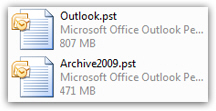 All the data Outlook 2007 uses is stored (by default) in a single folder, inside PST files; if you were to take these PST files, copy them onto another computer, inside another Outlook's profile folder, that other Outlook program would contain an exact image of all your emails, contacts, calendar, events, and reminders. This is why backing up your entire PST files folder is a better solution than exporting emails or contacts.
The downside from backing up your entire Outlook profile is size: your default PST file plus any archived PST file will often exceed a gigabyte. Not a problem if you have a USB drive (the most convenient backup, since it travels easily in your pocket or purse) - most USB drives today offer at least 8Gb of storage, which will more than cover the largest Outlook PST profiles.
Backup your Outlook 2007 PST files folder
To backup your entire Outlook profile, go to File > Data File Management: Outlook 2007 will open the Account Settings dialog, with the Data Files tab automatically selected: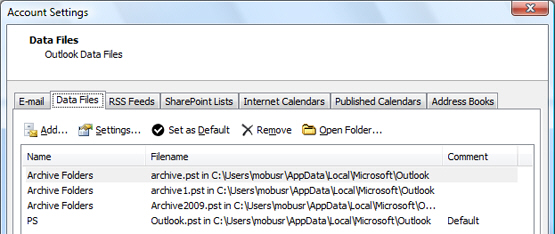
This dialog only shows PST files currently opened by Outlook, not all of them. But it is useful to locate the folder where Outlook stores its data. Unless you changed the default storage location, everything should be in a single folder, so it doesn't matter which PST file is selected when you click the Open Folder button to launch in Windows Explorer the folder to backup.
Write down the profile path and backup location
If Outlook 2007 has problems beyond being able to open it, you'll need to restore your profile from a backup. So, write down the location of your Outlook profile folder (ideally in a text file alongside your Outlook backup files), in case you need it later on. This will be extremely helpful for you if you need to restore your Outlook 2007 profile from a backup (next section).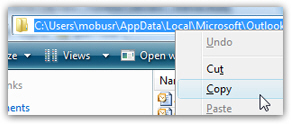
Exit Outlook 2007 before backing up!
Now that your Outlook 2007 profile folder has opened in Windows Explorer, exit Outlook: while it closes, it will release the opened PST files from memory, save any emails downloaded since it last saved your main PST file, remove emails from the Deleted Items folder (an optional setting), etc. We recommend that you wait about 1 minute after Outlook has closed, which will give it time to remove any temporary files and finish writing any changes (if you try to backup your profile before Outlook has fully released your profile from memory, you will receive an error message.) All that remains to be done to fully backup Outlook 2007 is to select all files (and folders, possibly) you may have inside that folder, copy them, and paste them to another location. Since your computer can be stolen and your house can burn down, it is a good idea to keep your backup mobile, like on a USB drive, that you keep with you at all times.
If you are very conscientious about your Outlook backups, you will use two separate USB drive, one of which remains in your car or at your office. This way, should the worse happen and you lose both your profile and your Outlook 2007 backup, you still have a few-days-old backup to bring you back on your feet. Many people backup their Outlook profile on the same computer as Outlook: this will only help you in case of corrupted PST files (an even less likely event since Microsoft redesigned the underlying PST file storage format in Outlook 2007). A true backup should be at least on a different machine or external storage, ideally in a different location!
Restore your profile from an Outlook 2007 backup
 Important: exit Outlook 2007 before attempting to restore data from a backup; wait about 1 minute after Outlook closed, and proceed with the following.
If a problem occurs with your Outlook profile, all you need to is plug in the USB drive on which you placed your last Outlook backup and open the Outlook 2007 profile folder (this is the folder whose path you wrote down in the backing-up steps described earlier).
Then, either delete (not recommended) or place the current PST files inside a folder you create and can call something like "Pre-Restore Outlook Files". Once you have in essence backed up the problematic profile, copy all the files from your backup and paste them inside the Outlook profile folder on this computer. When the files have finished transferring, restart Outlook 2007, and you should be ready to resume working, minus any emails, contacts, and calendar events you added since your last backup (which underlines the importance of backing up Outlook regularly!)
Use the same Outlook 2007 profile between computers (thanks to your backup!)
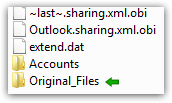 Because, as we said, Outlook 2007 stores everything inside your PST files, you can now easily use the same Outlook profile between several computers. Just copy your backup data from computer A inside the Outlook profile folder of computer B - make sure the first time to backup the original Outlook profile on computer B: just cut these files, create a folder named "Original Profile" (for example) in that same folder, and paste the default PST files inside that folder. But, as long as you are using Outlook version 2007 on both computers, you should not have any problem.
In addition to being convenient, this approach also forces you to backup your Outlook profile regularly (which is the key to a good backup strategy!) How often you backup Outlook 2007 show be the maximum number of days of work (in Outlook) you are willing to lose.