Backup or export contacts from Outlook 2007, Outlook 2003, or Outlook 2002
 Whether you want to backup your address book, or export your contacts to another email program / webmail client, like Hotmail or Yahoo Mail, Outlook 2007 includes an import-export utility that allows you to backup to file portions of your inbox or contacts. In this tutorial, we will show you how to export address book contacts from Outlook 2007 - the process works identically in Outlook 2003 and Outlook 2002.
Export your contacts To a CSV file ("Comma Separated Values")
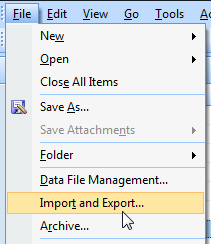 Because it only consists of plain text, with pre-defined values separated by commas, exporting your Outlook contacts to CSV gives you unparalleled flexibility. Click on the File menu in Outlook's main window.
Click on Import and Export.
Outlook 2007 will open the Import and Export Wizard, which lets you configure the exported file formats, and the items you want to backup or export: choose "Export to a file" from the list of actions, and click Next.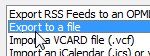
Presented with a list of export file formats, choose "Comma Separated Values (DOS)", which is the most compatible CSV format Outlook offers, and click Next.
Select which contacts to export from Outlook
 On the next screen, select Contacts, or a contact category displayed below your main contacts file, and click on the Next button. The final step is to pick the destination and file name for your exported contacts. By default, Outlook 2007 (and earlier versions) will export the contact file to your desktop, and call it "OutlookContacts.CSV". Unless you have a reason to change the defaults, keep this easy-to-find target folder and descriptive file name.
Click Next again to see a summary screen; Outlook now gives you the possibility to "Map Custom Fields" - a feature for advanced users, which lets you customize which fields of information Outlook will include for each contact, and to customize the headers ("column names") of each piece of information.
Click Finish to start exporting your Outlook contacts to a CSV file: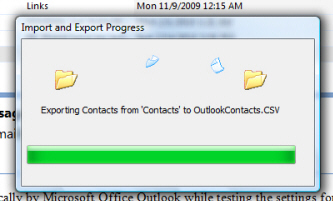
Depending on the number of contacts you have accumulated in Outlook, the amount of information for each contact, and the speed of your computer, the export process may take a few minutes: most often, it is complete well under a minute.
Import your Outlook contacts into another email program
The remainder of this tutorial mainly depends on what you want to do with your Outlook address book and contacts: if you wanted to backup your contacts, you are done: just store the CSV contact file on a USB drive or remote backup server.
If you exported your contacts to import them into the address book of another email client or webmail service, follow that destination's documentation on importing contacts: it usually just takes a couple of clicks to launch the import functionality and locate your CSV file.