Servers Properties for Email Accounts in Opera Mail (M2)
 Opera Mail's email account properties are as user-friendly to configure as setting up your email account. M2 divides your email accounts properties (or "settings") in four tabs: General, Servers, Incoming, and Outgoing. This tutorial covers your email account's Servers properties.
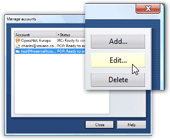 To view or configure your email account's properties in Opera Mail, go to Tools > Mail and chat accounts.
From the Manage accounts dialog that opens, select the email account whose settings you want to configure, and click Edit.
Alternatively, double-click the email account in the Manage Accounts dialog to open Account Properties, or hit Enter while it is selected.
Email Accounts' Servers Properties in Opera Mail
Click on the Servers tab of the selected email account's properties. This tutorial will go through the settings typical to a "POP3" email account (rather than an IMAP account or third-party webmail service.) 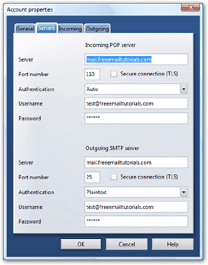
Opera Mail's Servers Properties for a POP3 email account are divided between Incoming POP Server and Outgoing SMTP Server.
Opera Mail's Servers Properties determine how the email client "talks" to your mail server: both incoming (receiving emails) and outgoing (sending emails). Most of this information was entered initially, when setting up your email account; Opera filled in TCP port values and authentication settings with standard settings. In case of problems sending or receiving emails, these settings are likely at cause.
Incoming Server Properties in Opera Mail
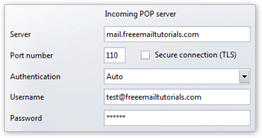 The incoming server properties determine how Opera Mail requests emails from the server. The Server field contains the address of your server (most often in the form mail.emailProvider.com or pop3.emailProvider.com).
The Port field is usually always 110 for a POP3 email account; (IMAP email accounts generally use 143 for incoming mail port.)
Unless you need encrypted authentication (currently unsupported by most web/email hosting companies), you should leave Secure Connection (TLS) disabled, as it is by default.
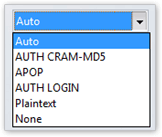 Opera Mail supports different authentication schemes, which define how M2 will transmit your user name and password to your mail server; higher security options are best, but not necessarily supported by your mail server or email host. Opera Mail uses the Auto option by default: this means that M2 will successively try logging into your account, using authentication schemes by order of most secure to least secure.
Authentication scheme selection is set on a per-email-account basis, and does not affect other email accounts in Opera.
The Username field typically contains your email address itself, which also serves as user name for the mail server; if this default setting causes problems, try using only the user name part of your email address (i.e. the part that precedes the "@" sign).
Password is your email account password, which is usually identical for both incoming and outgoing authentication.
Outgoing SMTP Server Properties in Opera Mail
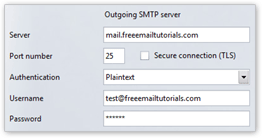 The Outgoing Server Properties mirror the Incoming server properties discussed above: your outgoing settings will be used by M2 when it tries sending emails from your computer.
The Server field contains your mail server's address (in the form mail.emailProvider.com or smtp.emailProvider.com, usually: it frequently matches the address used for incoming mail).
The standard value for the Port field is nearly always 25 for both POP3 and IMAP email accounts. In an effort to fight spam and preventing mail relaying, some Internet Service Providers or email providers use port 587 and close port 25 altogether.
As with your incoming mail server settings, leave TLS unchecked (default) unless you know that your email provider supports or requires it.
Outgoing Authentication - Potential Problems with Email Providers
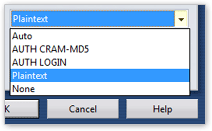 Unlike incoming mail settings, for which Opera Mail's Auto authentication choice always works (in our experience), some mail servers are more picky with your outgoing mail server settings (i.e. those typically affected by spammers - either from infected computers, or by attempts to use the mail server as unauthorized relay). If your email host requires outgoing authentication, you may have to try one setting after the other, until your emails go through.
Username is typically your email address itself; if you encounter problems with this setting, try only using the user name part of your email address (before the "@" sign). The Password field expects the password for your email account, (which is nearly always identical for incoming and outgoing authentication.)