Outgoing Properties for Email Accounts in Opera Mail (M2)
 Opera Mail's email account properties are as user-friendly to configure as setting up your email account. M2 divides your email accounts properties (or "settings") in four tabs: General, Servers, Outgoing, and Outgoing. This tutorial covers your email account's Outgoing properties.
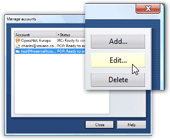 To view or configure your email account's properties in Opera Mail, go to Tools > Mail and chat accounts.
From the Manage accounts dialog that opens, select the email account whose settings you want to configure, and click Edit.
Alternatively, double-click the email account in the Manage Accounts dialog to open Account Properties, or hit Enter while it is selected.
Email Accounts' Outgoing Properties in Opera Mail
Click on the Outgoing tab in Opera Mail's Account Properties dialog. The settings under Outgoing do not affect the outgoing server itself (covered under Servers properties), but rather the way outgoing emails are handled before they leave Opera Mail.
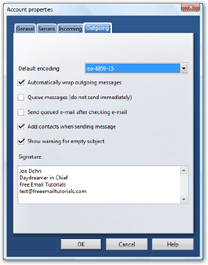
Default Email Encoding
The Default encoding will determine what character set Opera Mail will use when sending your emails. By default on a Windows machine (with Latin characters), Opera will use ISO-8859 - the Windows western character set. While UTF-8 is a more flexible encoding, not all email clients support it.

Unless you run into problems using ISO-8859 (or the default encoding chosen by your operating system), you should leave the settings automatically chosen by Opera.
Outgoing Emails Options
Opera Mail offers five options on handling outgoing emails. Again, these options are handled by Opera Mail, before emails are sent to the outgoing mail server.
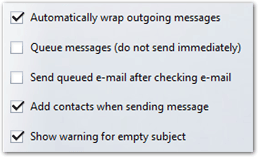
- Automatically wrap outgoing messages — Enabled by default, this option instructs Opera Mail to force in a line return to wrap long lines of text. Some email clients (like Microsoft Outlook) automatically reformat plain-text emails they receive.
- Queue messages (do not send immediately) — Disabled by default, this option determines whether Opera Mail should send emails immediately, or store them under Outbox until you explicitly send them (by clicking Send queued, or hitting Ctrl+Shift+K).
- Send queued e-mail after checking e-mail — Also disabled by default, this checkbox lets Opera Mail know whether it should automatically send unsent emails upon checking for new ones, (the alternative being to send immediately, or wait for manual request to send queued emails.)
- Add contacts when sending message — Enabled by default, this option allows M2 to automatically add to your Contacts any email address to which you reply - more generally, any email address to which you send a message.
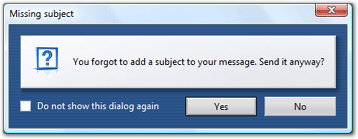
- Show warning for empty subject — By default, Opera Mail will show you the following dialog box if you try to send an email with an empty subject line:
Automatic Email Signature in Opera Mail
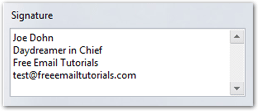 Opera Mail can automatically append a custom signature to your outgoing emails, and each email account can have its own signature.
To learn how to use email signatures in Opera Mail, please see the Automatic Email Signature tutorial.