Incoming Properties for Email Accounts in Opera Mail (M2)
 Opera Mail's email account properties are as user-friendly to configure as setting up your email account. M2 divides your email accounts properties (or "settings") in four tabs: General, Servers, Incoming, and Outgoing. This tutorial covers your email account's Incoming properties.
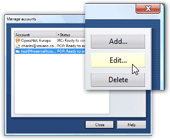 To view or configure your email account's properties in Opera Mail, go to Tools > Mail and chat accounts.
From the Manage accounts dialog that opens, select the email account whose settings you want to configure, and click Edit.
Alternatively, double-click the email account in the Manage Accounts dialog to open Account Properties, or hit Enter while it is selected.
Email Accounts' Incoming Properties in Opera Mail
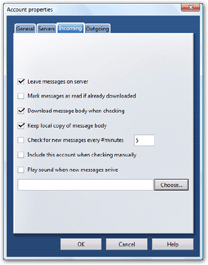
Click on the Incoming tab in Opera Mail's Account Properties dialog. The settings under Incoming do not affect the incoming server itself (covered under Servers properties), but rather the way incoming emails are handled before they downloaded in Opera Mail.
Incoming Mail Handling in Opera Mail
The first four options determine how Opera Mail will handle your emails when they are downloaded, and the way it interacts with the mail server.
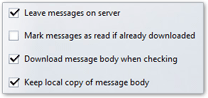
- Leave messages on server — This option was setup according to your choice when you first setup the given email account. It determines whether Opera Mail should delete an email on the mail server after it has successfully downloaded a copy of it on your computer. (See Mail Server Settings & Security for your best choice.)
- Mark messages as read if already downloaded — By default, Opera Mail shows all emails freshly downloaded as new (or "Unread"). Disabled by default, this option instructs Opera to use the mail server as indicator, rather than itself. With this option enabled, any email already downloaded by Opera Mail (from another computer), or another email client, would appear as read when you download it.
- Download message body when checking — By default, this checkbox is ticked, and Opera Mail downloads the body (content) of each new email it finds. Uncheck this option to have Opera Mail download instead only the headers of new emails. This is particularly interesting for slow Internet connections.
- Keep local copy of message body — Checked by default, this option means that all downloaded emails will be available offline, rather than requiring a live Internet connection anytime you want to see the content of an email. Unless you face strict hard drive space constraints, leaving this option enabled is more practical.
Checking for New Emails in Opera Mail
Opera Mail can check for new emails on the server either automatically, or manually.
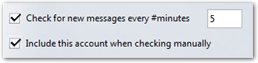 In this screenshot, Opera Mail will check for new emails on the selected account every five minutes, automatically. Check for new messages every #minutes is ticked, and a valid interval is entered.
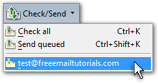 The checkbox Include this account when checking manually is ticked as well, instructing M2 to also check for new emails on the server. The decision to check manually or automatically for new emails depends on personal factors and preferences: in "normal" circumstances, having Opera Mail automatically check on the server for new mail is more convenient.
New Email Notification Sounds in Opera Mail
By default, Opera Mail does not play a sound when new emails have downloaded; Opera's behavior is independent from your operating system's settings. 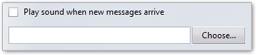
 It is however simple to make Opera Mail play a sound file of your choice: tick the Play sound when new messages arrive checkbox, and pick a sound file. Click the Choose button and pick a wav file.
Making Opera Mail Use Windows' New Mail Notification Sounds
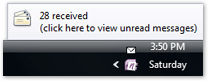 If you like using the same sound for new emails arriving across email applications, you can make Opera Mail use the same new email sounds as Windows.
You will hear the sound play once emails have been downloaded, and still get Opera Mail's visual cues.
Windows XP's default New Mail Notification sound is "Windows XP Notify.wav"; in Windows Vista, the New Mail Notification sound is "Windows Notify.wav". For both Windows XP and Windows Vista, the new mail sound file is inside the "C:\Windows\Media\" folder.