Importing Old Emails in Opera Mail (M2)
 Whether you are upgrading to the latest version of Opera, or starting to increasingly use Opera Mail instead of another email program, there are chances that you will be able to import your own emails into Opera. Opera comes with built-in import/export functionality (not only for emails, but also RSS feeds, bookmarks, and Opera contacts.)
 "M2", the email client introduced in Opera 7, differs from the mail client in Opera 5/6. Email accounts, emails, and contacts you created in Opera 7+ are automatically imported. If you are upgrading to the latest version of Opera from a version pre-dating M2, you may need to manually import emails.
Importing Emails in Opera Mail
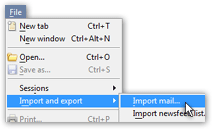 To import emails in Opera Mail, click on the File menu, choose Import and export, and then Import mail.
The New account wizard will open, offering you a list of email programs from which Opera can import emails.
Whether you already have email accounts setup in Opera Mail does not matter; you will have the choice to integrate imported emails into a pre-existing account if you like.
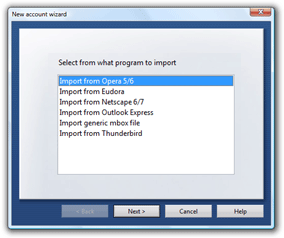
Opera can import emails from Opera Mail prior to M2 (Opera 5 and 6), as well as other email programs: Eudora, Netscape 6 and later, Outlook Express, or Thunderbird. Also notice listed among programs the following entry: "Import generic mbox file".
 mbox is a somewhat standard file format used to store emails; if the email program from which you would like to import emails is not listed by Opera, check if that program can export is emails or contacts in mbox format. Since there are variations in mbox formats, you may run into problem; but it is worth a try.
Opera Mail's Email Import Settings
In our case, we will choose Import from Thunderbird, and click Next. The import email settings will be displayed; this final step of Opera Mail's wizard allows you to choose what to import from emails, contacts, account settings, and where to import the data.
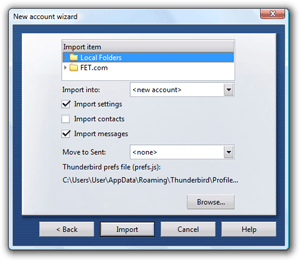
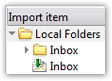
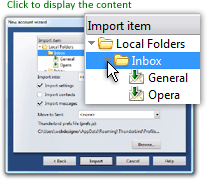 In the top section, "Import item", you can choose between importing all content ("Local Folder", or "Inbox"), or some sub-items only: click the arrow to show the content of any folder. In effect, "Import item" acts an mbox viewer.
In our case, "General" and "Opera" are subfolders of Inbox, under Thunderbird's main identity profile.
Selecting a folder will import it, as well as its content; selecting Inbox, in our example, would import everything contained in the General and Opera folders.
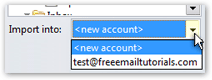 The Import into dropdown menu allows you to choose whether to import your emails into a new email account (created from imported email account settings), or merge them into an email account pre-existing in Opera Mail. We will choose to import emails into a <New account>.
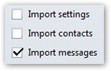 You can choose to import emails, contacts, email account settings, or a combination thereof, in Opera Mail.
We will only import emails ("messages"). Simply check or uncheck the items you want to import or leave alone.
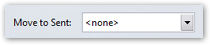 Set to "<None>" by default (i.e. "Do not import these emails"), Opera Mail also allows you import sent items as well; click the dropdown menu to choose in which folder to import sent emails from your other email program.
Completing the Email Import Process
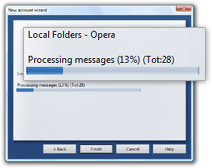 Click Import; Opera will start importing your old emails. Depending on the number of emails to import, this operation may take a while; the import percent complete is a realistic indicator of the email import progress.
Once complete, Opera Mail's import wizard will confirm the number of emails it imported.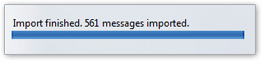
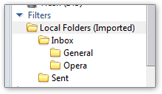
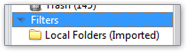 Click Finish to complete the email import wizard. You should now find that your old emails have been imported into Opera; since Opera Mail does not support "email folders" per-se, your imported emails are under "Filters", in a filter named after the selection you imported. It should also contain "(Imported)" appended to its name.
You have successfully imported your old emails in Opera Mail!