Change the email-handling program in Opera ("mailto" handler)
 Using M2 (Opera Mail) while using the browser or RSS reader functionality is by far the most productive way to handle email links on web pages. However, Opera gives you the possibility to change which email program it uses. If your organization uses Microsoft Outlook, for example, using M2 may not be feasible; rather than copying email links and switching to Outlook, you can simply have Opera send these email links directly to Outlook.
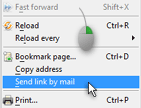 Changing the email-handling application in Opera will not only affect clicks on email links, as well as the built-in "Send link by email" functionality, used to email a link to a web page.
 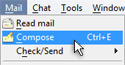 Changing the mail-handling application will also affect the Compose command under the Mail menu. It will not affect, however, Read Mail or Check/Send, which only target Opera Mail.
Configuring Opera to Use an External Email Client
There are two ways you can configure Opera to use an external email application when encountering email links: either from the preferences, or directly using the "Opera:Config" editor (below). We will first show you the more intuitive way: the Preferences dialog.
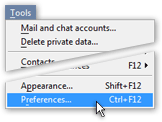 To launch Opera's global options dialog, go to Tools > Preferences, or press Ctrl+F12. Then click on the Advanced tab, and go under Programs.
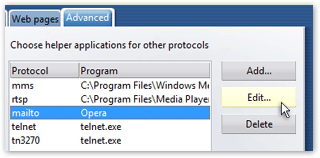 Locate the item labeled "mailto" under the Protocol column; it is referring to the mailto "pseudo-protocol" used in email links displayed on web pages.
As soon as you click a mailto link, your web browser sends the information to your system's default email program; in the case of the Opera Suite, which comes with a built-in email client, these are handled "internally" by default.
To change the program associated with "mailto" links, click the Edit button.
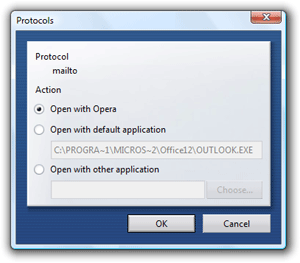 The Protocols dialog will open.
The default settings are to let Opera Mail handle emails within Opera. This is the first choice, "Open with Opera".
The option "Open with default application" will send email links to the default email application for your operating system (Windows/Mac/Linux…) Opera displays the path to your operating system's default email application in the text field below.
The "Open with other application" option enables you to choose any email client you want; this is useful if you want a program different from your default email application to handle these links.
Click OK to validate your choice, and OK again to close Opera's Preferences dialog. Test your email program settings in Opera with this email link.
Configuring Opera's External Email Handler from Opera:Config
If you are reading this tutorial in Opera, click (opens a new tab), or type opera:config#Mail in the Address Bar: it will bring up Opera's Preferences Editor, and automatically scroll to the Mail section of Preferences.
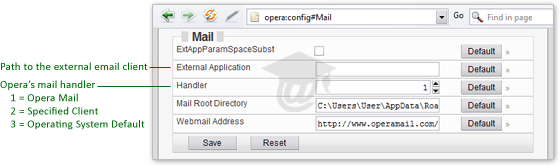
The screenshot above depicts the default settings: Opera Mail (M2) handles email links. To use another email client, aside from your operating system's default mail handler, enter the path to the email program to which you'd like Opera to forward email links in the External Application field. The Default button resets it to blank.
The Handler field accepts numerical values: "1", the default, means "Use Opera Mail" for email links; "2" means "Use the email client specified under External Application"; "3" means "Use my operating system's default email application."
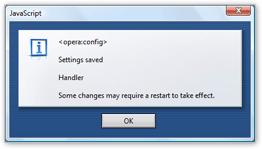 To finalize your changes, click the Save button (or Reset to revert to previous values.)
If successful, Opera will visually confirm the change of settings, and warn you about having to restart Opera for these to take effect.
Email handling settings do not actual require a restart; to check that your email handler was indeed changed, click this test email link.
No External E-mail Application Specified
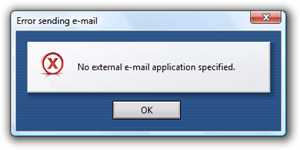 With the message "No External E-mail Application Specified", Opera tells you that you have chosen to use a specific email program (aside from your operating system's default mail application), but have not supplied a valid path. The problem is easily corrected by either supplying a valid path to the email program you'd like to use, or let Opera Mail handle email (or your operating system's default application).