Advanced Mail Toolbar buttons in Opera Mail (M2)
The mail toolbar comes with basic buttons, we will show you later how to add or remove buttons on the toolbar. This tutorial introduces you to Opera Mail's advanced buttons and controls available in Opera Mail, but not normally loaded by default.

Below some commands, you will find the keyboard shortcut equivalent. For example, hold down the control key (Ctrl on Windows/Linux, or  on a Mac), and then press E to create a new email within Opera.
Opera Mail's Advanced Toolbar Controls
Opera Mail does not display these buttons or controls by default. (To add them, simply click on the Opera Mail window chrome and choose Customize - another tutorial will be dedicated to showing you how to customize Opera Mail's interface.)
 Restricts the current View to only display emails that were only sent to the current contact.
 Restricts the current View to only display emails that were only sent from the current contact.
 Displays the current view's emails as Flat (no email conversation thread).
 Displays current View's emails as conversation threads (opposite of "Flat").
 Toggle On or Off the visibility of mailing list items in the current view.
 Toggles On or Off the visibility of news feeds items (RSS) in the current view.
 Toggles On or Off the visibility of Unread emails in the current View (or visibility of news feeds items/mailing list emails). Not to be confused with the Read/Unread button, which toggles an email's Read status.
 Toggles On or Off the visibility of emails filtered as spam.
 Toggles On or Off the visibility of deleted items, (i.e. items under Trash View).
 Toggles On or Off the visibility of items who have been filtered, and whose filter properties requires that the items be marked as filtered. (Sounds complicated now, but it really isn't, as you'll see in our Filters tutorial.)
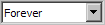 This drop down menu allows you to show or hide emails depending on when they were sent or received: by default, the drop-down menu's preselection is "forever" (no emails are hidden). The available time interval selections are Today, Week, Month, Three Months, Year, and Forever.
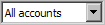 This drop-down menu lets you alter visibility a View's content based on account type or email account. The available choices are All accounts (default), Mail accounts (meaning emails), News accounts (newsgroups), and as many more selections as you have email accounts.