Free Email Tutorials: Apple Mail, Mozilla Mail, Thunderbird, Opera M2, Microsoft Outlook 2003, Outlook Express, The Bat!, WordPerfect Mail
 
Home Email Clients TutorialsEmail Clients Tutorials General Email TutorialsGeneral Email Tutorials Feedback

Mozilla Thunderbird TutorialMozilla Thunderbird Tutorial

Thunderbird Tutorial Meet Thunderbird Install Thunderbird Getting Started Setup an Email Account Thunderbird's Interface The Mail Toolbar Sending Emails Receiving Emails The Address Book Export Address Books vCards in Thunderbird Printing from Thunderbird Import In Thunderbird Import Your Settings Import Your Contacts Import Your Old Emails Managing Your Emails Using Folders & Labels Filters in Thunderbird The Search Bar Searching for Emails Spam and Junk Mail Backup and Restore Customizing Thunderbird Your Email Signature Thunderbird Themes Thunderbird Extensions Customize the Toolbars Customize the Address Book Thunderbird's Options General Options Display Options Display Options - Fonts Composition Options Privacy Options Attachments Options Advanced Options "On-The-Fly" Options Local Folders Settings Outgoing Servers (SMTP) Email Accounts Settings General Settings Managing Identities Server Settings Copies and Folders Composition & Addressing Disk Space Settings Return Receipts Security Settings Maintaining Thunderbird General Maintenance Thunderbird Updates Thunderbird Crashes Thunderbird Resources Keyboard Shortcuts Setting Thunderbird as Default Email Client The ThunderTray Utility The Lightning Calendar Thunderbird on the Web Thunderbird News Thunderbird Tutorial Errata
Thunderbird 2 Preview!
You are here: Free Email TutorialsMozilla Thunderbird Tutorial › vCards in Mozilla Thunderbird (v-cards)
Windows, Apple Mac OS X, Linux While this Thunderbird tutorial focuses on Windows, please note that Thunderbird is a "cross-platform" email client: it runs and operates the same way on Windows, Apple's Mac OS X and Linux.
Overview: this free tutorial explains what vCards are and how to use them, both for you, to be attached on outgoing emails, and to process from your senders. (vCards and v-cards are the same thing.)

vCards in Mozilla Thunderbird (v-cards)

vCards (or "v-cards") are an electronic file format used as repository for contact information. vCard is also an Internet standard, which means that a multiple applications on different platforms (Windows, Mac, Linux) and devices (Desktop computers, PDAs…) support them.

Internet Mail Consortium: vCards Overview Internet Mail Consortium: Overview of vCards opens in a new window

Creating Your Own vCard

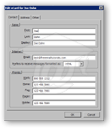
Sample vCard in Mozilla ThunderbirdThunderbird supports vCards, which are digital equivalents of business cards. vCards can be imported into programs like Microsoft Outlook or Lotus Notes, which saves your email recipients the burden of having to manually enter your contact information.

To create (or edit) your vCard, go to Tools > Account Settings, select your email account, and click on the Edit vCard button.

Thunderbird can automatically attach your vCard to every email you send. To automatically include your vCard in outgoing emails, simply check the Attach my vCard to messages checkbox.

You can create as many vCards as you have email accounts and identities. Multiple identities can share the same email account. (Identities in Thunderbird)

Receiving vCards Through Emails
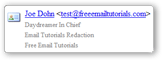
Receiving a vCard through email in Mozilla ThunderbirdIf someone sends you a vCard as attachment, Thunderbird will display it at the bottom of the email, with a business card icon (left).

To add someone (who sent you his or her vCard) to your address book, simply click the business card icon, and it will open the New Card for [sender's name] dialog. If you click OK, the person and all his or her contact information will have been added to your personal address book.

Thunderbird shows emails with vCards as having an attachment, which disappears as soon as you activate the email. The attachment was the vCard.

The following advertisers help make these free email tutorials possible:
FreeEmailTutorials.com is a comprehensive, ever-growing list of email tutorials and learning resources related to e-mail. You, the viewer, determine the direction this website will take with your questions, comments and suggestions. Site CreditsCopyright © 2008 Free Email Tutorials, All Rights Reserved — Terms of Use | Privacy Policy | Accessibility Statement | Top of Page