Sending Emails with Thunderbird
This is where the action starts: using Thunderbird to communicate with your friends, colleagues and clients. Thunderbird was designed for the general public, as an alternative to Microsoft's Outlook Express, (or Outlook, but only Outlook Express is free.) For this reason, it is very user-friendly: the icons are clean, large, and labeled, which makes it easy to use the program right after install. (Many other email programs are configured by default to displaying small, un-labeled icons.) If you have ever used Microsoft Outlook or Outlook Express, Thunderbird will seem familiar. Thunderbird has more features than Outlook Express, but is just as user-friendly!
Creating a New Email

Ctrl+M Create a blank email
Ctrl+N (Also works)
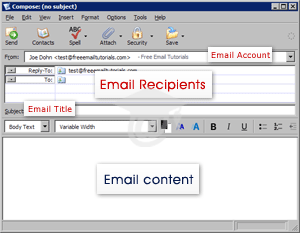 The email account you have just setup should be visible in the top drop-down menu: from left to right, it should display your name (as you chose it to appear for outgoing emails), your actual email address enclosed in <angular brackets>, and the nickname you gave to your email account.
Below is the area where you'll pick email recipients for your email. There are four lines visible, but as you'll see, this number can be increased as needed.
The "Subject" line, where you'll enter your email title. If you leave it blank, Thunderbird will give you a last chance before sending your email with "(No Subject)" as email title.
Finally, the email content goes in the text area at the bottom. Although they are disabled until you focus in the text area, you can see the text control for "Rich Text Editing," that give you the possibility to format your emails: different font families and font sizes, bold, italic, underlined, numbered lists, etc.
Ctrl+S Save in Drafts the email you are editing
Formatting Your Emails

Thunderbird supports plain text emails and "rich format" emails, allowing you to format the content of your emails. Once you click inside the email content area, the formatting toolbar will show clickable buttons, (they are grayed-out when your cursor is in the text fields above it.)
Ctrl+B Bold
Ctrl+U Underlined
Ctrl+I Italic
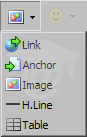 The Insert Button on Thunderbird's formatting toolbar allows you to insert non-text elements in your emails:
• A clickable link (like "www.FreeEmailTutorials.com")
• An "anchor" (a link that points to an internal spot in your email content)
• An image (from your hard-drive, or from the Internet)
• An "H.Line" (an horizontal line to separate segments of text)
• A table (to display tabular data)
Ctrl+L Insert Link
Using Thunderbird's "Built-In" Smileys
 Thunderbird's Insert a Smiley Face menu allows you to enter smiley icons (also called "emoticons") to spice up your emails. To email clients not supporting expressions to smiley faces, a wink would simply appear as ";)"

Sending Attachments with Your Emails
Thunderbird lets you send emails with attachments, or … web pages! This is a very nice feature if you want to forward a whole web page to a friend. You will probably come to love this feature: sending the whole page saves your friends a link click.
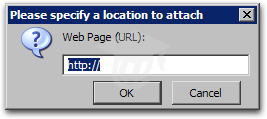 To send a web page with Thunderbird, click the drop-down arrow to the right of the Attach button. Thunderbird will prompt you for the web page's address (or "URL").
The easiest is to copy-paste the address from your web browser; otherwise, type the complete URL, as in "http://www.FreeEmailTutorials.com/".
Be aware that some email providers or system administrators block attachments. Make sure your friends received your email before deciding not to speak to them ever again.
Sending Emails
Once you click Thunderbird's Send button, your email is queued: it is temporarily stored in the Outbox folder. If no Internet connection is currently available, Thunderbird will keep your emails stored in the Outbox until it can access your mail server.
Working Offline: you can force Thunderbird to work offline if you do not want it to check for new emails or send your emails. Under the File menu, choose "Offline", and "Work Offline." By choosing "Offline Settings", you can customize Thunderbird's offline behavior when opening Thunderbird, when going offline, and when sending emails while in offline mode.
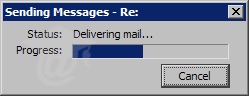 Once a connection is successfully established with the mail server, Thunderbird will display an email delivery message, which should only appear for a few seconds.
The Sending Messages box would appear longer if your Internet connection is slow, busy, or if you are sending large attachments.
Ctrl+Enter Send an email
By default, Thunderbird stores a copy of the emails you sent in the Sent folder. This is useful, but can be turned off.
Don't want copies of sent emails in the Sent folder? Go to Tools, Account Settings, select your email account and Copies & Folders. Uncheck the "Place a copy in" checkbox, and Thunderbird will stop copying sent emails in the Sent folder.
Thunderbird's Spell Checker
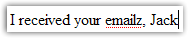 Enabled by default, Thunderbird includes a spell-checker that will prevent you from sending out misspelled emails. Fortunately, Thunderbird allows you to add unrecognized words to the dictionary of the spell-checker.
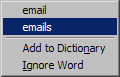 To see what Thunderbird's spell-checker suggests instead, right-click on the word underlined with a red dotted line.
After clicking the send button, Thunderbird will popup the spell checker if any word in your email is not recognized. You can then choose to follow its advice, or disregard it by clicking Send.
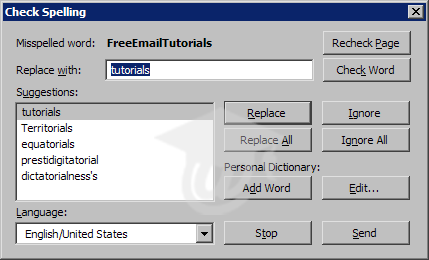
Ctrl+K Check spelling
If U.S. English isn't your primary or only language, you can download additional languages dictionaries from Mozilla.com: Mozilla.com/Thunderbird/dictionaries.html 
To disable Thunderbird's Spell Checker, go to Tools, Options, click "Composition" and select the "Spelling tab"; uncheck "Check spelling before sending".