General Email Account Settings in Mozilla Thunderbird
To access Thunderbird's email account(s) settings, go to Tools > Account Settings. In the Account Settings dialog, select the email account whose settings you'd like to modify.
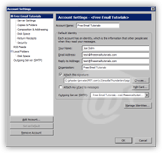 Thunderbird's General Account Settings contain mostly email settings determined when you first created or imported an email account in Thunderbird.
Under default identity, you will find your name and your email address. You also have the option to give the selected email account a friendly nickname, and the possibility to enter a Reply-to [email] address: in some cases, matching your email address and reply-to address, or simply entering explicitly a reply-to email address, reduces your likelihood of seeing your emails filtered as junk.
Thunderbird also lets you enter an organization name, and an automatic signature for outgoing emails. (See how to configure an email signature in Thunderbird.)
Attaching your personal or business vCard
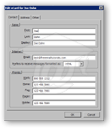 Thunderbird can automatically attach your vCard to every email you send. (vCards are digital equivalents of business cards, and can be imported into programs like Microsoft Outlook or Lotus Notes.)
To automatically include your vCard in outgoing emails, simply check the Attach my vCard to messages checkbox.
(To learn more about vCards, please see vCards in Thunderbird.)
Outgoing Server (SMTP)
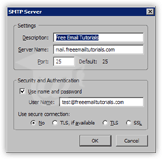 Thunderbird supports multiple email accounts, and multiple SMTP servers. But although it attaches the original SMTP server to each email account you setup, Thunderbird keeps track of each SMTP server as a separate piece of information. It gives you the advantage of being able to edit an SMTP server in one place, and see all email accounts using it be updated at once.
To learn more about managing and configuring outgoing multiple SMTP servers in Thunderbird, please see the Outgoing Servers (SMTP) tutorial.
Managing Identities in Thunderbird
Thunderbird allows you to change identity without log off and back in. This is especially useful when a help desk is shared by multiple employees for example. Multiple identities can be attached to a single email address. Please see the Managing Identities tutorial for more information.