Receiving Emails with Mozilla SeaMonkey Mail
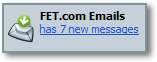 A ticker (new mail alert) will flash for a few seconds in the bottom right corner of your screen when SeaMonkey Mail downloads new messages from the server, indicating which account has received how many emails (see screenshot) - click the blue underlined notice to open the email program or restore it if it was minimized.
  Even if you weren't in front of your computer then, SeaMonkey will also add an envelope icon to the system tray (taskbar notification area), as shown on the second screenshot: double-click on the icon to open or restore SeaMonkey Mail.
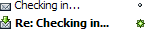 New emails are listed in bold text with a green custom icon. You can toggle an message's "Read / Unread" status by clicking the dot (see screenshot) or pressing the "M" keyboard shortcut.
Add or remove email columns
All email folders in SeaMonkey Mail are by default sorted by date; but each of the column headers (pictured below) can be clicked to sort messages in the current folder by their value. Click once more on the header by which everything is currently sorted, and you'll reverse the sort order! (Useful, for example, to show new emails at the top or at the bottom, whichever your prefer.) Notice from the screenshot that the current sort is highlighted with an arrow:
 To add or remove column headers, click on the right-most button (pictured left), and check/uncheck names to show or hide the corresponding columns. Unlike other email clients, this is a global setting that will affect all email folders, not just the current one.
Tip: you can also change the order in which columns are displayed. Click, hold, and drag the column header left or right, and release the mouse button when you are satisfied: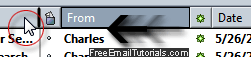
Conversation threads
Instead of sorting your messages by date (default), SeaMonkey lets you group your emails by conversation thread: all replies and forwards related to the same "conversation", whoever sent them, will be displayed together, as shown below, in a collapsible set. This is very useful for lots of emails about few conversations, but ends up taking more space than necessary if you have multiple emails about lots of different conversations!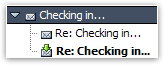
Tip: to view your emails as conversation threads, go to View > Sort By > Threaded, (or Unthreaded to stop showing emails as threads.) SeaMonkey Mail automatically reverts to unthreaded mode when you change your emails' sort order.
Flag messages
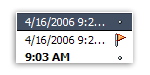 SeaMonkey Mail allows you to flag emails for review: they will show a red icon (see screenshot) that demarcates them from the rest, like a todo reminder to take some kind of action on that message. If the flag column isn't visible, you now know how to add it!
Basic email header information
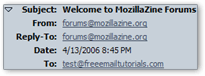 SeaMonkey Mail displays five pieces of information for the currently selected email (left screenshot). This information is often redundant with the information shown in the email listing. Click on the rectangle to collapse headers and get a minimal amount of information: