SeaMonkey Mail Keyboard Shortcuts
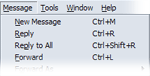 Here's a list of keyboard shortcuts for SeaMonkey Mail on Windows and Linux - on Mac OS X, these shortcuts will also be shown on menus, but using the command key ("cmd") instead of the control key ("Ctrl"). Instead of a comprehensive listing, we focused on the keyboard shortcuts you are most likely to use, especially in the context of email. Not all commands have a corresponding shortcuts: to check, find the command in a menu / submenu, and its global shortcut will be displayed on the right. For all other "missing" shortcuts, use accelerator keys - example, from the screenshot: you can reply to a message by pressing Ctrl+R, but you can access that same command by pressing Alt+M (to show the Message menu) and then press the accelerator key (of "R", in this case).
| General Keyboard Shortcuts | |
|---|---|
| F8 | Show or hide the message pane (content of selected email) |
| Ctrl+D | Check for new messages on the mail server(s) |
| Ctrl+U | View current email's source (includes email headers) |
| Ctrl+M | Create a new, blank message (works even when you are outside Mail, but inside another SeaMonkey application, like the web browser). |
| Del | Delete the selected emails - moves to trash, or permanently deletes them if they were already in the Trash. |
| Ctrl+W | Close the SeaMonkey Mail or Address Book window |
| Ctrl+Q | Exit SeaMonkey (will close all SeaMonkey applications - email program, web browser, etc. - the shortcut above only closes the active window) |
| Organizing your emails... | |
| J | Mark selected email as "junk mail" |
| Shift+J | Mark selected email as "not junk" |
| M | Toggles the selected email's "Read" / "Unread" status - this shortcut also works when multiple messages are selected at the same time! |
| Ctrl+Shift+C | Marks as "Read" all emails in current folder (regardless of how many were selected - you cannot undo this "mark-all-as-read" command) |
| 1-5 | Assign a tag to the selected message: how to use and customize tags. |
| 0 (zero) | Remove any tags from the selected email |
| * | Expand all email threads |
| \ | Collapse all email threads Note: these last two shortcuts only work |
| While reading your emails... | |
| Ctrl++ | Increase email text size |
| Ctrl+- | Decrease email text size |
| Ctrl+0 (zero) | Revert to normal email text size; does nothing if text was not zoomed in or out (use the zero key on the main keyboard, not the numeric keypad) |
| F | Next email (think F as in Forward) |
| B | Previous email (think B as in Backward) |
| N | Next unread email (think N as in Next) |
| P | Previous unread email (think P as in Previous) |
| T | Go to the next "unread" thread (i.e., the next email conversation that contains at least one unread message). |
| Ctrl+O | Opens the current email in its own window |
| Ctrl+P | Prints the current email; if multiple messages are selected, all of them will print, back-to-back (with each email starting on a new sheet). |
| Email message window | |
| Ctrl+R | Reply to the sender of the current email |
| Ctrl+Shift+R | Reply to the sender and all recipients of the current email (this will not respond to any blind-carbon-copied recipients, which remain secret!) |
| Ctrl+L | Forwards the selected email(s) |
| Side info: SeaMonkey Mail will either forward it inline, or as an attachment, based on the default setting, which you can change as follows: go to the Message menu, choose "Forward As", and select your preference - you can do that using the dropdown arrow in the forward button as well (see Mail Toolbar Tutorial). | |
| Composing and formatting your messages | |
| Ctrl+Shift+P | Check the spelling of your message before sending it! |
| Ctrl+Enter | Send an email: unless you've turned off the notice, SeaMonkey will ask for a confirmation, in case you accidentally hit that shortcut. |
| Tip: use the shortcuts below work while editing a message inside an email window - pressing the same Ctrl+A keyboard shortcut (for example) will otherwise select all emails in the current folder. | |
| Ctrl+B | Bold |
| Ctrl+U | Underlined |
| Ctrl+i | Italic |
| Ctrl+L | Insert a link: make sure to start regular links with "http://" - to insert clickable email address links, type first "mailto:", and then the person's email address (no spaces). |
| Ctrl+A | Select All |
| Ctrl+X | Cut selected text |
| Ctrl+C | Copy selected text |
| Ctrl+V | Paste |
| Finding & Searching | |
| Ctrl+F | Find text in current email |
| Ctrl+G | Find again (find next) |
| Ctrl+Shift+G | Find previous |
| Ctrl+Shift+F | Search messages |
| Address Book Keyboard Shortcuts | |
| Ctrl+5 | Show Address Book (either open it, or switch to it when you are in another SeaMonkey application, like the web browser or composer) |
| Ctrl+2 | Show SeaMonkey Mail (as above: this opens it, or switches to it) |
| Ctrl+i | Opens the selected contact's properties window |