Mozilla SeaMonkey Mail Interface
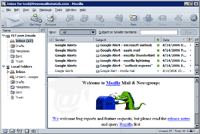 The SeaMonkey Mail main window is divided in three panes, all visible by default: if your window doesn't look like the screenshot on the left, go to the View menu, select "Layout", and choose what elements to show or hide.
The "Folder Pane" (left) contains the default folders and those you create, as well as email accounts folders. Any folder that shows a "disclosure triangle" next to it contains subfolders: click on the triangle to expand or collapse them.
The "Thread Pane" (top right) shows all email messages inside the current folder - possibly filtered by keywords you typed inside the "Search Bar" (covered below).
The "Message Pane" (bottom right) displays the content of the selected email: in other email programs, it is often called the "Preview Pane" or "Reading Pane" - same thing!
Tip: notice that each pane shows little arrows on its border - click on them to quickly show or hide the selected pane! You can also resize any of them by dragging the border, as shown below: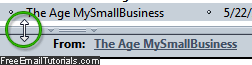
Default email folders
Before you even create any custom folders, SeaMonkey will automatic add these six "default folders" after you have added at least one email account to the program:
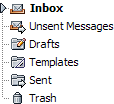 Inbox — where incoming messages are stored by default: you can override that by creating "mail filters" (also called "email rules) to automatically sort emails based on specific conditions.
- Unsent Messages — where unsent emails are stored until a connection is available (called "outbox" in other email clients).
- Drafts — where SeaMonkey Mail stores your saved but unsent emails - whenever you click "Save" on a message you are composing, it is stored in that folder.
- Sent — where a copy of every successfully sent email is stored.
- Trash — the folder where all deleted messages will are stored.
Tip: To prevent SeaMonkey Mail from keeping a copy of your sent messages, go to Edit > Mail and Newsgroup Account Settings, and uncheck the "Automatically place a copy in" checkbox under "Copies & Folders".
The Search Bar
The Search Bar appears right above the current folder's email listing. If you cannot see the it, go to View > Show/Hide > Search Bar. Briefly, the search bar allows you to quickly find messages inside the current folder; to learn how to use it, see our Search Bar tutorial. For in-depth searches, you can use the Find Tool: go to Tools > Search Messages.
Customizing SeaMonkey Mail
Customize the interface to your liking by going to Edit > Preferences; select Mail & Newsgroups > Windows and choose between the two layout options. Quickly switch between layout types by clicking on the View menu, select "Layout", and take your pick!
- Default View -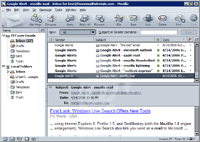 | - "Wide" View -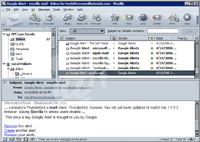 |
|---|---|
| This view takes advantage of the height of your screen to see all folders in the Folder pane. | This view leverages the full width of your screen to read your emails (that's our favorite!) |
Press F8 to show/hide message pane (email content preview).
You can also show or hide the Mail Toolbar, the Search Bar, or the Status Bar (horizontal, bottom edge of window). To do that, click the View menu, click Toolbar, and check/uncheck the appropriate toolbar. By default, SeaMonkey Mail has all three toolbars visible.
Customizing SeaMonkey Mail's Mail Toolbar
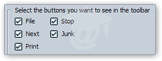 You can easily customize the Mail Toolbar: go to Edit > Preferences, and select Mail & Newsgroup. Check or uncheck the buttons you would like to see on the toolbar. See our Mail toolbar tutorial to learn more and a breakdown for each button.