What version of Windows 7 do I have? (Windows 7 editions)
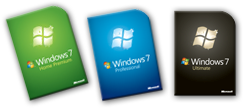 Let's start by clarifying the "version vs. edition" issue: Windows 7 is a version, just like Windows Vista and Windows XP were. But the information you are looking for, once you already know that you are running Windows 7 on your computer, is "What edition of Windows 7 do I have / am I running?" as opposed to "What version of Windows 7 do I have". This detail out of the way, let's start this tutorial and explain how to find out everything about your the flavor of Windows 7 installed on your PC (including the cryptic 32-bit vs. 64-bit information). The edition determines what features you can access for your version of the operating system: the installation CD for Windows 7 trials, for example, includes all features of Windows 7 Ultimate: by entering a license key (serial code), you let Windows know which edition you purchased, and thus what functionality should be enabled.
Note: in addition to version and edition information, Windows stores all kinds of system profile data under a single screen in the Control Panel. Press and hold the Windows key and hit the Pause / Break key.
What edition of Windows 7 do I have on my computer?
Follow these steps to check your operating system version and edition:
- Click on the start menu, and type "winver" in the search field; "winver" stands for "Windows Version", and is a quick way to get that information.
- Once Windows 7 displays the search results, click on the first link, as shown on the screenshot below:
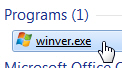
- As soon as you do, Windows 7 will open an "About" dialog, much like the one you find in programs under the Help menu. It will look like this:
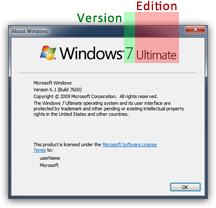
- You will get both your Windows version ("Windows 7"), and your Windows 7 edition - typically, it would be on of the following: "Starter", "Home Basic", "Home Premium", "Professional", "Enterprise", or "Ultimate".
- And you have your answer! You now know what edition (not version) of Windows 7 you have on your computer. Next, let's get the 32/64 bit information.
Do I have Windows 7 32-bit or 62-bit?
Since winver didn't tell us anything about your "processor architecture", follow these steps:
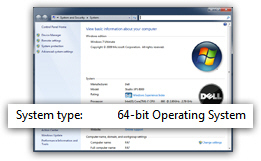
- Open the start menu, and type "system" in the search field; then, click on the "System" link that is displayed under "Control Panel".
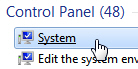
- Windows 7 will open the "View basic information about your computer" screen; the top section says "Windows edition"; the second section ("System") includes a line that reads "System type" - next to it, you will either see "32-bit Operating System" or "64-bit Operating System" - there's your answer!
- You can then close the Control Panel and return to Windows.
Note that the edition Windows 7 you have is independent from 32-bit or 64-bit. In other words, you can have Windows 7 Home Premium 32-bit installed on your computer, or Windows 7 Home Premium 64-bit.