Receiving Emails with Apple Mail
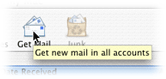 By default, Apple Mail will check all your email accounts for new emails every five minutes. You can always check for new emails manually by clicking the Get new mail in all accounts button, or by pressing the Command+Shift+N keyboard shortcut. (An updated tutorial also explains how to change how often Mac Mail checks for new messages on the server.)
Messages are automatically sorted by date, from newest to oldest, and you can reverse that order simply by clicking on the "Date Received" header. (Right-click on any such header to show or hide the following columns: Attachments, Author, Buddy Availability, Date Received, Date Sent, Flags (shows up as an icon), From, Mailbox, Number, Size, and To. You can sort by "message status" (Read/Unread), but you can't hide that field.
Checking the Server for New Emails
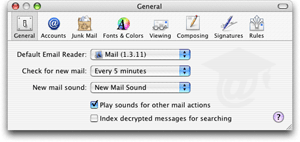 Apple Mail's periodicity for automatically checking the server for new mail can be configured.
To do so, go to Mail > Preferences.
In the General tab, use the "Check for new email" drop-down menu. By default, it is set to check every 5 minutes.
Available choices include every 1, 5, 15, 30 minutes or every hour. Optionally, you can tell Apple Mail never to check the server for new email, in which case you will need to use the Get new mail in all accounts button.
Tip: automatic checks are possibly overridden by individual email accounts' settings: see Advanced Email Settings for more information. Also, remember that if you've setup email rules (mail filters), new messages won't necessarily go to your inbox, as they do by default.
New Emails

 Unread emails are bold-faced, and have a blue aqua-style icon next to their left. OS X also lets you know that you have unread emails by showing a white number in a read circle in the dock, on top of the Apple Mail icon.
Even when Apple Mail is not the program running in the foreground, a red circle with a white number will appear in the top right corner of Apple Mail's icon in the dock, indicating the number of unread emails.
Email Headers
When a new email arrives and you select it, Apple Mail shows you basic header information. By default, only the following headers are visible (and are sufficient most of the time):
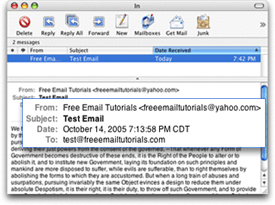 • From - It indicates from whom the email originates by supplying the sender's name (if available) and email address in a Person Name <email@domain.com> format.
• Subject - Bold-faced, it is the email's title. Acronyms are sometimes prepended to the emails' subject, for example: "RE:" indicates a reply to an email, and "FW:" that it was forwarded.
• Date - The date field normally indicates when the email was originally sent. Please see below for an overview of email timestamps.
• To - Like the From field, it should indicate the recipient(s)' name (if available) and email address.
The timestamp you see in emails is assigned by the outgoing mail server, (who will send the email from your computer to the rest of the Internet.)
The date isn't always reliable: the first mail server may be set to a time zone different from yours, the system administrator may not have set the proper time, etc.
Bottom line: do not file for divorce on the basis of an email timestamp.