Apple Mail Tutorial (Mac Mail)
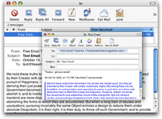 Starting with Mac OS X, Apple Computers added an email client to their operating system. Now discontinued*, Microsoft's Outlook Express for Mac used to be the prevalent email application for Mac users. No longer, enter Apple Mail.
Apple Mail is a simple but full-featured email client, quick to load and intuitive to use. During this tutorial, you will learn how to set up an email address in Apple Mail, and customize it to your preferences.
* While discontinued, Outlook Express for Mac can still be downloaded (for free) from Microsoft's website: Microsoft Outlook Express for Mac 
| Made By | Apple Computer Corporation |
|---|---|
| Price | Free (Bundled with Mac OS X) |
| Software Type | Freeware (What is Freeware?) |
| Product Home Page | Apple.com/macosx/…
|
Start Apple Mail
 If you are running some version of OS X, Apple Mail comes with your Mac. If you do not see an icon for Apple Mail, double click the hard drive icon on your desktop. Then click the Applications tab on the left. You should see the Apple Mail icon along with your other programs'.
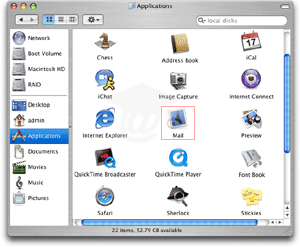
(For easier access to your emails in the future, you might want to drag the Apple Mail icon to your desktop or the dock.)
Now, open Apple Mail.