Change how often Windows Mail checks for new emails + Work offline
 By default, Windows Mail will regularly check for new emails; the number of minutes it waits before polling the server for the next batch of new messages (with a default of 5 minutes) is something you can configure. On the one hand, you want the automatic email check to be frequent enough so that you can reply to emails you receive in a timely manner, but on the other hand, every time Windows Mail notifies you of new email messages is an interruption of your concentration and workflow. You have to find the right balance between the two, and then customize the number of minutes you want before Windows Mail checks for new emails. We'll show you how to manually check for new messages any time you want, and how to prevent email accounts from ever checking for new mail on the server. Side info: Windows Mail will check for new mail when you launch it, and wait for the set number of minutes (what you'll change in this tutorial) before automatically checking again on the server. In this tutorial: Configure new mail check interval | Exclude email accounts | Work offline
Configure how often Windows Mail checks for new emails
To customize the number of minutes Windows Mail waits between new mail checks:
- Click on the Tools menu and choose "Options".
- Make sure that the "General" tab is selected in the Options dialog that opened.
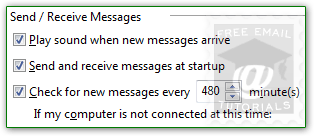
- Settings under "Send / Receive Messages" control interactions with the mail server:
 Note: these settings affect every email accounts setup in Windows Mail; the end of this tutorial covers individual email accounts.
 - The "Send and receive messages at startup" checkbox, checked by default, tells Windows Mail if it should connect to the server when it starts. If you uncheck it, the next check will happen [x] minutes after the program has started.
- If "Check fore new messages every [x] minute(s)" checkbox is checked (it is by default), Windows Mail will automatically query the server for new mail at the selected interval; if it is unchecked, the program will only check for new emails when you click the "Send/Receive" button (or press the equivalent Ctrl+M keyboard shortcut).
- The dropdown menu controls behavior when no internet connection is available: • "Do not connect" (default) - nothing will happen, and the application will wait until a connection is restored; you may receive error messages every [x] minutes.
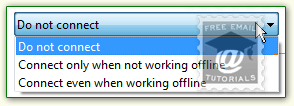
• "Connect only when working offline" - will check for new mail only if you are not offline; you are never online unless you manually switched (see next section).
• "Connect even when working offline" - this setting allows you to keep using Windows Mail normally, even if Internet Explorer is working offline (otherwise, checking for messages will put both back online, as loading a web page will - see last part of this tutorial). - Click on the OK button to accept the new settings and return to Windows Mail.
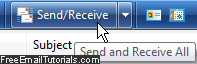 Remember that you can always manually check for new emails, regardless of whether the number of minutes to wait before new mail checks has elapsed or not - the dropdown arrow lets you pick which account to check, receive mail only, or send mail only. You ultimately have full control!
Prevent an email account from being checked for new messages
To exclude an email account from the Send/Receive synchronization, click on the Tools menu and choose "Accounts". Double-click on the account you want, and make sure that the "General" tab is selected in the account properties dialog that opened: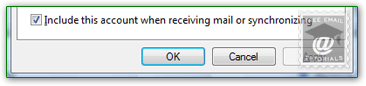 Uncheck the "Include this account when receiving mail or synchronizing" checkbox, and click on OK. Repeat these steps for every email account you want to exclude.
Switch Windows Mail to offline mode
When Windows Mail works offline, it will behave as if you were on an airplane, without an internet connection - and you don't need to disconnect from the internet. This is a good trick to remember when you want to be productive: no new mail will disturb you, and this doesn't involve changing any setting in your email program. Under the File menu, click "Work Offline": when you are currently offline, a checkmark will show next to the command, like this: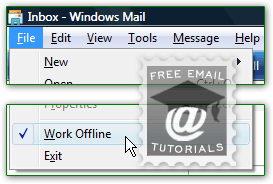
Caveat: because Windows Mail and Internet Explorer are tightly integrated into Windows Vista, either one will know when you go offline with the other one. Browsing the web in IE will require that you go online, which will set Windows Mail to "online". If Vista uses desktop gadgets that require an internet connection (like the weather gadget), it will show a "Service not available" error message while you are offline, if the gadget tried to connect while Windows Mail was offline.
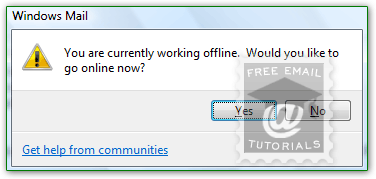
Starting offline
If Windows Mail starts offline (which is the case if Internet Explorer is currently offline, for example), you will get a confirmation message: "You are currently working offline. Would you like to go online now?" - click Yes to check for new messages (and send any email in the outbox), or click No to stay offline. If you choose to connect to the mail server, the counter will start at that point, and check for new mail after the number of minutes you've set previously has elapsed: