Create an HTML email signature in Outlook Express (Rich Format)
 You do not have to manually type your signature each time you send emails: Outlook Express can add and manage email signatures for you. Outlook Express can either automatically append an email signature to every email you create, or let you manually pick the most appropriate signature from a list, depending on occasion.
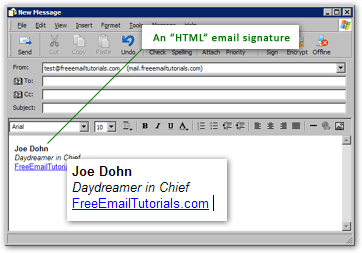
This tutorial teaches you to create rich text ("HTML") email signatures, which contain formatting information (like text colors, bold or italic text…) Unlike plain text signatures, richly format allows you to add some style to your email signatures; to create "plain-text" signatures, please read our tutorial on using plain-text signatures in Outlook Express emails.
Creating a Rich Text (HTML) Signature for Outlook Express Emails
To create an email signature, go to the Tools menu, from Outlook Express' main window, and click Options. On the Options dialog that opens, select the Signature tab.
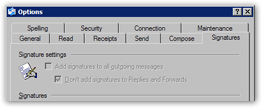 As we saw in the Plain Text Email Signatures tutorial, you can create signatures by simply typing in the Signatures text box. To create an "HTML" (or "formatted") signature, however, you will need to use an external HTML file: don't worry, it is very easy to accomplish.
To create a new signature, click the New button under the section labeled Signatures.
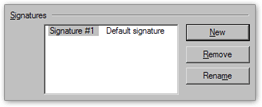 A new email signature, labeled Signature # 1 - Default Signature will appear. Start by clicking Rename, to choose a more meaningful name.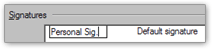
Creating a HTML File for Signature
Since Outlook Express comes with its own HTML editor for email composition, we will use it to compose our HTML signature — no knowledge of HTML needed!
- Open a new email.
- In the email body: type your and format signature how you want it to appear in emails.
- Once you are done, click on the email's File menu, and choose Save As.
- From the "Save as Type" dropdown, choose "HTML".
- Give your file a name, and save it where you will find it (like the Desktop).
- Click Save.
You just created an HTML file that can be used by Outlook Express as HTML signature.
Using an HTML File as Signature Text
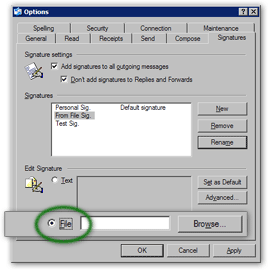 Instead of typing your signature, select instead the radio button labeled "File": this will let you browse for the HTML signature file you just created, and instruct Outlook Express to use it for this signature's text.
From the dialog that opens, navigate to the proper location, and pick the HTML signature file you created above.
Click Open to confirm your choice of file: the HTML file path and name should now fill the File text field.
Click Ok on Outlook Express' Options dialog. Your HTML signature is now ready to be used. (To make Outlook Express automatically insert this signature on outgoing emails, please see our Signature Settings tutorial.)
Email signatures are created and managed for each identity: if you use multiple identities (or "Outlook Express profiles"), your signature settings only apply to the current identity. If you do not know what an identity is, or don't remember ever creating one, please disregard these remarks: they do not apply.
Manually Inserting Email Signatures in Outlook Express
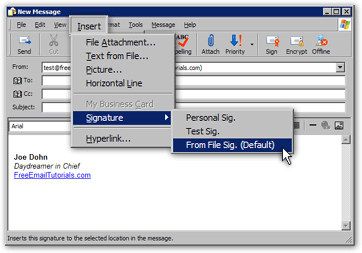
Whatever your Email Signature Settings may be, Outlook Express allows you to manually pick and insert an email signature. To manually insert a signature into an email, click the Insert menu in the email window, then pick a signature under the Signature sub-menu.
Tip: the "Signature" sub-menu is disabled unless your cursor is inside the email body.
Ctrl+Shift+S Insert an email signature