Outlook Express Backup
 This tutorial teaches you how to backup your Outlook Express emails. Outlook Express uses DBX files for each email folder, so Outlook Express' backup folder contains as many DBX files as you have email folders. Backing up the DBX files used by Outlook Express has all your emails backed up.
Tip: backing up your emails in Outlook Express amounts to the same thing as exporting your emails; while this tutorial focuses on email backup, the procedure used for backing up your emails can also be used to export your emails to a new computer for example.
Outlook Express emails and contacts (address books) are backed up differently. Are you trying to backup your Outlook Express address books and contacts?
-
Content of this page:
- Introduction: backing up your Outlook Express emails
- Locate your Outlook Express Store folder
- Backup Outlook Express Emails in the Store folder
- Exporting emails out of Outlook Express
- How often should you backup Outlook Express?
Introduction: Backing Up Your Outlook Express Emails
Emails for your profile (or "Identity") are stored in a special folder, whose name varies with each identity ever created in Outlook Express.
 Your Outlook Express "Store Folder" contains a number of DBX Files, (or Outlook Express Mailbox files), each corresponding to an email folder for your Outlook Express identity. (Outlook Express automatically creates an identity for you.)
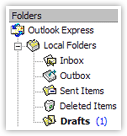 Each email folder you created in Outlook Express has a corresponding DBX file in which the emails are stored.
Even special email folders like Inbox, Drafts, Outbox and Sent Items have their DBX file to backup.
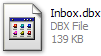
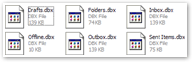
Pictured below, a typical Inbox.dbx file, which corresponds to your Outlook Express Inbox. To backup your emails in Outlook Express, you simply need to backup your DBX files.

Locating Outlook Express' Store Folder (Profile)
Outlook Express stores your emails (the DBX Files) in a Store Folder, and Outlook Express creates a store folder for each identity.
Tip: an identity in Outlook Express is the same as an email profile in Microsoft Outlook: it is used to store your set of email accounts and program preferences.
In order to backup Outlook Express emails for multiple identities, you would simply need to repeat the backup procedure for each identity.
To make your future backups easier, be sure to read Quick Email Backup once you finish this tutorial.
 Before backing up your emails, ensure that you are logged into the proper identity (if you have never created an identity in Outlook Express, you do not have to worry about this.)
Since Outlook Express has one store folder per identity, you need to be logged in as the identity you want to backup.
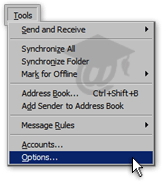
To locate your Store Folder, go to Tools > Options from Outlook Express' main window.
Outlook Express' Options dialog will open.
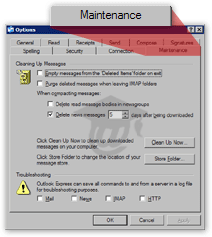 Click on the Maintenance tab. About midway across the window, locate the Store Folder button:
  Note that Outlook Express gives you the ability to change the location of your message store, or Store Folder. (You could change it to a folder easier to backup, like under the My Documents directory.)
We do not want to change the location of Outlook Express' store folder, but this dialog will give us the location of the folder we want to backup.
Opening Outlook Express' Store Folder
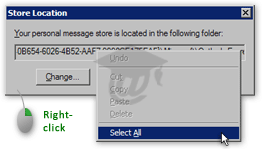 Outlook Express' Store Location dialog will open, and display the path (location) of the store folder with emails to backup.
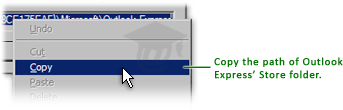
Right-click on the path, and choose Select All; right-click again, and choose Copy.
Now that we have in Windows' clipboard the path of the folder to backup, let's open it.
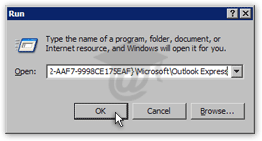 Click on Windows' Start button, and choose Run; the Run dialog allows you to launch programs, web pages or open folders.
Right-click in the input field and choose Paste to paste Outlook Express' store folder path; click OK.
Outlook Express' store folder should have now opened in Windows Explorer; it contains all the DBX files we need to backup.
Backing Up Outlook Express' Store Folder (Outlook Express Profile)
Now that Outlook Express' store folder is opened, you can see several DBX files: each file corresponds to one of your email folders. It is now only a matter of choosing which email folder (DBX file) to backup. If you have plenty of space in another location, you might as well backup all email folders (all DBX files in the store folder).
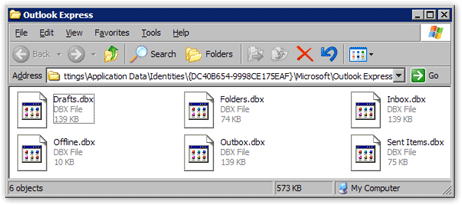
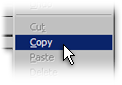 Choose Select All from the Edit menu, and then Copy: this will copy a reference to all DBX files to Windows' clipboard. Go to the backup location or folder, and choose Paste. Copying your DBX files has in effect backed up your Outlook Express emails.
Tip: To selectively pick email folders to backup, hold down the control key ("Ctrl") and click each DBX file (or each "email folder") you plan on backing up.
To make backing up your Outlook Express emails easier in the future, we will show you how to add your Outlook Express profile folder to your Internet Explorer favorites. Now would be a great time to read Quick Email Backups, which will show you how to quickly access and backup Outlook Express emails in the future.
Exporting Your Emails (vs. Backing Up Your Emails)
 The procedure outlined in this tutorials enables you to backup your Outlook Express emails. However, this exact same procedure can be used to export your emails to a new or another computer, for example.
 The process of importing exported emails into Outlook Express will be covered in a later tutorial: the same email import procedure can also be used for restoring backed up emails in Outlook Express.
How Often Should I Backup My Emails?
Technically, you can backup your emails on a daily basis; such frequent backups may be more a hassle than a necessity however, especially if you keep less than 50 new emails daily.
Instead of backup frequency, consider how new computer is, how well you maintain it (regularly defragment your hard drive!), and how important your emails are. Depending on your email provider and email settings, you may already be backing up your emails unknowingly by leaving a copy of each new email on the mail server, for example.
Ultimately, the importance of your emails in your eyes determines how much time and effort you should put into backing up Outlook Express data (both emails and contacts). Also, keep in mind that restoring a backup will only restore emails and contacts up to the point of the last backup: this will help you determine how often you should take the time to backup Outlook Express.
This tutorial focused on manually backing up your emails. A later tutorial will cover third-party software that allows you to automate and simplify backing up Outlook Express.