Create new contacts from the Outlook Express Address Book
 Outlook Express comes with a built-in Address Book tool to let you easily manage your contacts from a centralized location. The Address Book lets you add new contacts, edit existing contacts' information, and remove obsolete contacts.
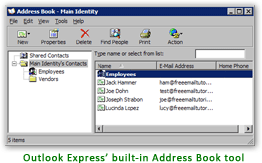
We saw how you can add new contacts to your address book from emails; this tutorial focuses on Outlook Express' Address Book, and how to add contacts from it.
Creating New Contacts from Outlook Express' Address Book
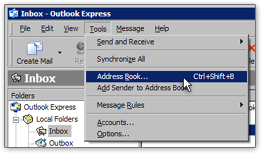 Start by opening the Address Book: from Outlook Express' main window, go to the Tools menu, and click on Address Book.
Alternatively, you can open the address book using the keyboard shortcut "Ctrl+Shift+B".
While the Address Book looks like a separate tool, it is actually tightly integrated in Outlook Express: each time you start typing an email address into the To field of an email, Outlook Express uses the address book contacts to try to match it and complete it for you.
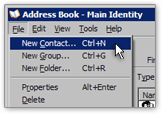
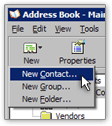 From the Address Book window, there are two easy ways to create new contacts: go to File > New Contact, or click on the Address Book toolbar's New Contact button.
The new contact's Properties window will open, with blank fields for the new contact's information.
Ctrl+N Create a new address book contact
Editing New Contacts' Information in the Address Book
The Properties window that opened contains all the fields needed and later on visible through the address book. Fill-in all the values you want, and click the OK button to actually create the new contact in Outlook Express' address book.

Notice that multiple email addresses are accepted for each contact; this allows you to create a single contact in Outlook Express' address book, yet have a single-point access to all email addresses this contact may have.