Manually Archive Emails in Outlook 2003
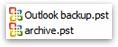 You will want to regularly "archive" your old emails. Practically, this means that Outlook 2003 stores these emails in a separate PST file, thus reducing the size of the Outlook.pst file used by Outlook.
As we'll see in the next tutorial, Outlook 2003 will automatically offer to AutoArchive Emails every now and then. The advantage of archiving your old emails is PST file size: smaller PST files are faster to load, and less prone to problems (like PST file corruption).
Archiving Old Emails in Outlook 2003
To manually archive your emails in Outlook 2003, go to File > Archive: the Archive dialog will open, and offer you a variety of options.
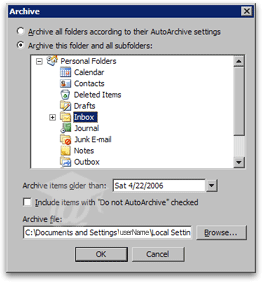 By default, Outlook selects the current folder (and subfolders) for archival (Archive this folder and all subfolders). To archive all folders in Personal Folders, select Personal Folders instead.
If you spent time customizing email folders' properties (AutoArchive settings specifically), you can ask Outlook to follow folders' AutoArchive properties by clicking the Archive all folders according to their AutoArchive settings.
On the other hand, you can instruct Outlook 2003 to disregard folders' individual AutoArchive settings by checking the Include items with "Do not AutoArchive" checked checkbox.
Notice that Outlook says "Items", and not "Emails": this is because both email folders AND special folders' data will be included in the archive, such as Contacts, Appointments, Notes...
Picking a PST Archive Date Span
You can pick the date before which all emails must be archived, and optionally exclude email folders whose properties specifically exclude auto-archiving (see further down).
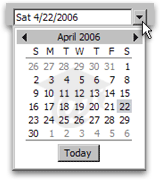 By default, Outlook 2003 will choose the current date minus exactly three months. To choose another date, click the drop down arrow to open Outlook's date picker.
To archive all emails older than today's date, click the date picker's Today button. (Clicking today means archive emails "older than today" - in other words, received before today.)
To navigate in time to select another month, use the date picker's left- or right-pointing arrow. Notice that the day before which emails will be archived is highlighted; to pick another day, simply click a date in the selected month.
Saving Archived PST Files from Outlook 2003
Finally, Outlook lets you choose where to save the archive (a PST file), and what to call it. In Windows XP, Outlook 2003 will save the archive file under C:\Documents and Settings\ [yourUserName]\Local Settings\Application Data\Microsoft\Outlook\, as "archive.pst".
In Windows Vista, Outlook will also save the archive as "archive.pst", but under C:\Users\ [yourUserName]\AppData\Local\Microsoft\Outlook.
We recommend that you keep this default location and file name, mainly for two reasons:
• In Windows 2000, XP, 2003, and Vista, the directories under your user name are not accessible to other users. This guarantees a certain security and privacy, (to the extent that your PC is set to use User Authentication and passwords).
• It makes it a lot easier for your System Administrator, IT-enlightened friend, or yourself, to troubleshoot any problem related to archiving, or to restore a PST archive.
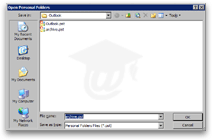 Despite everything, if you decide to change the default location and save your PST archive somewhere else, click the Browse button, and navigate to the folder you have in mind. To change the default archive.pst file name, simply type a new name in the File name field.
Alternatively, you can directly type a path and file name in the Archive file field.
Saving your PST archive files on a network drive is not a good idea. First, PST archive files will not be accessible whenever the network is down. Second, it will slow some operations in Outlook 2003 compared with using a local archive file.
To backup your archived PST files, place instead a copy of the archive file on the network.