AutoArchive in Outlook 2003
In order to maintain optimal performance, Outlook 2003 will regularly prompt you to let it AutoArchive old emails. As seen in our quick overview of PST files, all your personal data (including emails, contacts, email folders…) is stored in your Outlook.pst file.
 The larger your PST file, the more work Outlook requires for most operations; as a result, it makes sense to let Outlook auto-archive older emails to keep your PST file size reasonable. (You can always also manually archive your old emails.)
Using "AutoArchive" in Outlook 2003
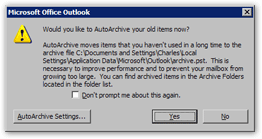 Every 14 days by default, Outlook 2003 will display the AutoArchive old items prompt; if you click No, Outlook will prompt you at a later time (next time you exit Outlook 2003, usually).
If you click Yes, Outlook 2003 will immediately start the AutoArchiving process. AutoArchive can run in the background while you use Outlook - no need to close it or stop using it.
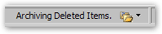 During the AutoArchival process, Outlook 2003 uses its status bar (lower right corner of Outlook's main window) to display the AutoArchive stage (here archiving the deleted items folder).
Outlook's AutoArchive service will run until it has archived all your older items (emails, notes…) However, you can cancel the process at any time.
Canceling an in-Progress AutoArchive Process
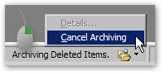 Should you need to cancel the Outlook 2003's AutoArchive process before it completes, simply right-click on the Archiving [Folder Name] status bar message, and click Cancel Archiving. Canceling AutoArchive in mid-course will not "un-archive" your old items; it will resume next time from where it left off.
At this point, only a portion of your older items have been sent to an archive PST file. To complete the process, you can either wait for Outlook's next AutoArchive prompt, or manually resume the AutoArchiving process (how to manually archive your emails).
AutoArchive Completed
If you left Outlook 2003's AutoArchive run until completion, you should not have any item (emails, notes, etc.) older than 6 months, Outlook's default AutoArchive time span.
AutoArchive thus ensures that your "Outlook.pst" personal folder file remains relatively small in size, allowing Outlook to run more efficiently, start faster (since the PST file is loaded on startup), and less prone to potentially catastrophic file corruption problems.