Customizing Outlook 2003's Toolbars
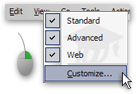 While nearly all commands in Outlook 2003 are performed from the keyboard, toolbars can be a impressively flexible repository of tools.
Outlook lets you completely customize your toolbars; not only can they be repositioned anywhere on screen, they can also contain any command you want.
To learn about more advanced Outlook toolbar customization, and the creation of custom toolbars, see our Customize Dialog - Toolbars tutorial.
Moving Around Outlook 2003's Toolbars
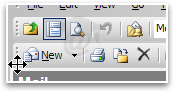 First, know that you can place your toolbars anywhere on screen, even outside Outlook's main window.
 Notice that each toolbar (like the menu bar) have a "grabber"; when your move your mouse over them, the cursor becomes a four-head pointing arrow.

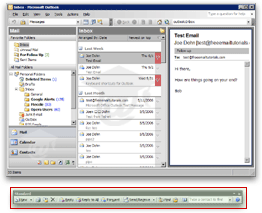 The four-headed pointing arrow cursor indicates that you can start dragging the object, in this case the toolbars.
Drag them and release them where you want them; you will notice that Outlook makes them snap near a corner if you hover over that region; it will automatically put the toolbar into place.
In this screenshot of Outlook, the Standard Toolbar was dragged outside the main window and floats on screen when Outlook is visible. To reposition the floating toolbar where it belongs, simply double-click its gray Title Bar.
Customizing Toolbars' Buttons in Outlook 2003
Note that it is possible to remove "on-the-fly" buttons from a toolbars (standard or custom) in Outlook 2003. Hold down the Alt key and drag the unwanted button away from the toolbar.
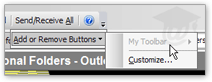 Note that the Customize command is not available for custom toolbars you created in Outlook 2003.
To customize custom toolbars using Outlook's Customize Dialog, please see the Custom Dialog: Toolbars tutorial.