Using Favorite Folders in Outlook 2003
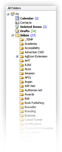 With time, accumulating email folders, subfolders, and search folders in Outlook is inevitable. Even by using keyboard shortcuts and cleverly named folders for quick access, navigating through email folders quickly becomes something of a stunt.
Fortunately, Outlook 2003 comes with the Favorite Folders feature, which allow you to isolate special email folders of your choice from the rest.
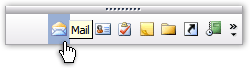
Favorite Folders are visible by default on the Mail tab; if you cannot see favorite folders above the regular ones, you are probably have the Folders tab selected; the Folders tab displays exclusively standard email folders, no Favorite Folders.
Adding Favorite Folders in Outlook 2003
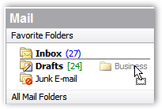 Adding any email folder as Favorite Folder in Outlook 2003 could not be easy: make sure that the Mail tab is selected (so that you can see your Favorite Folders), and drag the email folder above the Favorite Folders container.
A drop indicator (a light gray line) will appear between favorite folders and show you where the folder will be positioned. Simply drop the email folder when you are satisfied.
Note that unlike regular email folders, Outlook 2003 will not sort Favorite Folders alphabetically: Outlook gives you full control over your Favorite Folders' order.
 Should you change your mind later on, you can move a folder up or down in the Favorite Folders listing: either drag and drop the Favorite Folder to its desired location.
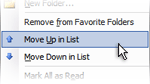
Another, longer, way is to use the context menu: right-click on the Favorite Folder, and choose Move Up in List or Move Down in List.
Removing Favorite Folders in Outlook 2003
Before we go on, it is important to understand that Outlook 2003's Favorite Folders are like Windows "shortcuts" - they are not the email folder itself. Therefore, removing a folder from your Favorite Folders will not affect the original folder in any way, much less delete it.
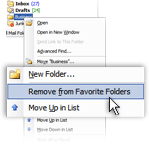 This said, Outlook makes it simple to remove a folder from your Favorite Folders: right-click on the Favorite Folder you would like to remove, and choose Remove from Favorite Folders.
This favorite folder has been removed, but it is still accessible in the folder tree, as any other regular email folder.
Aside from screen real estate, there are no limitations to the amount of Favorite Folders you keep; considering the ease of adding and removing Favorite Folders, the feature is worth a close look.