Email and Folder Icons in Outlook 2003
 Outlook 2003 displays by default up to four icons for any given email; these icons are so useful that it is worth remembering what they stand for.
Once you get accustomed to Outlook's icons, a split-second look at an email will provide an impressive wealth of information.
Outlook 2003 also has icons for special folders.
Standard Email Icons in Outlook 2003
These are the five basic email icons in Outlook 2003, for read, unread, forwarded, "replied-to", and unsent emails:
 An unread email (yellow, sealed envelope)
 A read email (white, opened envelope)
 A read or unread email that was forwarded
 A read or unread email to which a reply was sent
 An unsent email (an opened, stamped envelope with corner-folded sheet in foreground); this kind of icon is found in Outlook 2003's Drafts or Outbox folders.
Email Flag Icons in Outlook 2003

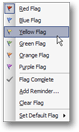 Outlook 2003 enables you to assign to your emails one of seven colored follow-up flags: Red, Blue, Yellow, Green, Orange or Purple.
 Additionally, you can assign the Flag Complete icon to your emails.
 By default, if the Email Flag column is visible, this grayed-out flag icon will appear for all unflagged emails.
Email Attachment Icons in Outlook 2003
 This icon signifies that the email contains one or more attachments (paper clip icon)
Calendar and Task Icons in Outlook 2003
Calendar items are a separate topic from email, except that they are exchanged through emails.
 A meeting request email
 An accepted meeting response email
 A declined meeting response email
 A task request
Email Modifiers (Importance) Icons in Outlook 2003
In addition to automatically assigning relevant icons to your emails, Outlook 2003 allows you to add "modifiers" to your emails, some of which have associated icons.
By default, emails you send from Outlook 2003 have an importance of "normal". Any email whose importance is normal will not have any visible "importance" icons. Very few people use the "Low Importance" modifier, but the "High Importance" modifier usually means that you should relegate YouTube to the backburner for a few minutes.
 Indicates an email whose Importance modifier was set to Low (blue down arrow)
 An email whose importance modifier was set to High (red exclamation point)
Changing the Confidential, Private, and Personal email modifiers will not change the appearance of your emails in Outlook 2003's.
Security Email Icons in Outlook 2003
 A digitally-signed, unread email (a medal and sealed yellow envelope)
 A digitally-signed email that has been (marked as) read (a medal and opened white envelope)
 An unread encrypted email (a lock and sealed yellow envelope)
 A (marked as) read encrypted email (a lock and opened white envelope)
Special Icons in Outlook 2003
 A return receipt or delivery receipt (a successful confirmation that your email was delivered and/or read by one of its recipients)
 An undeliverable email notice (the email was rejected by the recipient's mail server: this could be because of a non-existent email user, an exceedingly large email, etc.)
Example of Outlook 2003 Email Icons
Here are some example whose meaning will quickly become instinctive. As you can see, icons are potentially combined for any given email, for example:
 An unread email with attachment, whose importance was set to High.
 An unread email whose importance was set to Low.
 An undeliverable notice with email attachment.
 An Important email that was (marked as) read.