Advanced Email Options in Outlook 2003 (2)
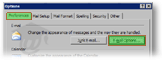 To access the generic Outlook 2003 email options, go to Tools > Options from Outlook's main window.
Click E-mail Options from the Option's dialog Preferences tab.
 Then, click the Advanced E-mail Options button.
"When sending a message" Options in Outlook 2003
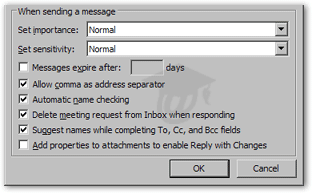 The default importance and sensitivity attributes for outgoing mail is logically "Normal", but Outlook 2003 lets you change these options.
Available importance levels are High, Normal, and Low. Levels available for the sensitivity setting are Normal, Personal, Private, and Confidential.
Automatically setting the importance and sensitivity settings will impact the intrinsic meaning they have (and render them absolutely meaningless).
The Message expire after X days setting lets you determine if emails should automatically expire (and be inaccessible) after a certain time.
The Allow commas as address separator allows you to use commas in addition to semi-column to separate multiple email addresses in recipient text fields (To, Cc, Bcc). Enabled by default, Outlook 2003 accepts both commas and semi-colons: Outlook will automatically convert the commas to semi-colons before sending out your emails.
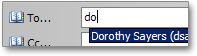 Enabled by default, the Automatic name checking feature allows Outlook 2003 to check email addresses you type in the To, Cc, or Bcc fields, against entries in your address books, and "auto-complete" them for you.
Outlook 2003 will by default show a drop-down auto-completion menu whenever you type email addresses or persons' name in the destination fields of your email (To, Cc, or Bcc). This saves you quite a lot of typing. Coupled with the Automatic name checking option above, auto-completion of addresses is a godsend. (Hit [Enter] to accept Outlook's suggestion.)
 Delete meeting request from Inbox when responding is checked by default. This saves you the steps of having to manually delete the meeting request. (If you accept the meeting request, the meeting time will be added to Outlook 2003's calendar.)
Email Attachments and Collaboration in Outlook 2003
Disabled by default, the Add properties to attachments to enable Reply with Changes.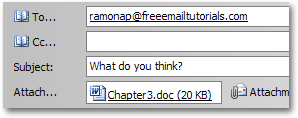 This is an excellent feature when a team using Office 2003 is collaborating on a project: it enables team members to send each other copies of documents while tracking changes and enabling comments on Microsoft Office documents.
(Note that this feature does not require a Microsoft SharePoint or Exchange server.)