Email a Word Document from Word 2007
 As with earlier versions of Microsoft Office, Office 2007's emailing functionality is optimized for Outlook 2007. This does not mean, however, that you need to have Outlook 2007 (or earlier version) to be able to email your Word documents.
While emailing documents using another email program works in a very similar way, this tutorial will assume that Outlook 2007 is installed on your computer, and that it is set as Windows' default email client.
Sending Documents as Email Attachment from Word 2007
By default, email commands readily available in Word 2007 are limited to the one discussed below, which will send your current Word document as an email attachment. In another tutorial, we will show you how to send Word documents inline, i.e. with the Word document's content as the body of your email.
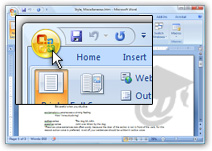 Click Word 2007's Office Button to open the "File menu."
There are no longer menus to speak of in Office 2007; the menu opened by the Office button (or by pressing Alt+F) corresponds to the File menu in previous versions of Microsoft Office, like Office 2003.
The new interface component that supersedes menus in Office 2007 is called "The Ribbon" — a series of horizontal, task-oriented tabs at the top of many Office 2007 applications. Notable exceptions include Outlook, OneNote, and Publisher.
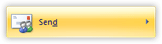 The Send command on the Office menu opens a submenu, which contains items varying with the software installed on your computer. Both E-mail and Internet Fax should be visible by default, regardless of software installed.
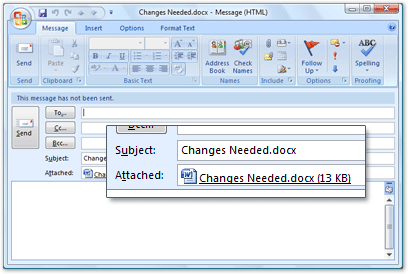
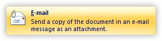 Click the E-mail menu item, and a blank email window will open, containing your Word document as attachment, and Outlook will use the document title as your email's subject line.
To email you Word documents faster in the future, use the keyboard shortcut below; press and hold the Alt key, and type each letter successively.
Alt+F,D,E Email Word Document as Attachment
Word 2007 will email as attachment a copy of your document as it currently is, and not email the document as it was when you last saved it.
Exiting Word With Unsent Emails
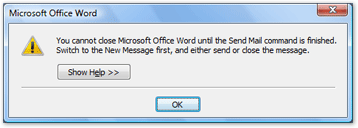
The Send Mail holds Word 2007 until you either cancel the email by closing it, or until you have sent the email. If you try to exit Word without having canceled or sent the email, you will receive the following message: "You cannot close Microsoft Office Word until the Send Mail command is finished. Switch to the New Message first, and either send or close the message."
Note that canceled emails from Word 2007 are not kept in Outlook's Draft folder. This applies both to blank emails generated by Word, and edited emails. If you have typed some text in the email, you will be asked whether you want to keep these changes, but Outlook 2007 will not save your email in its Draft folder, regardless of your answer.
For more info on the word processor part of Microsoft Office, please visit our Word 2007 Tutorial or Word 2010 Tutorial.